
Guide
Using Mini mPOS
Step-by-step procedures for everyday work: take payments, refund, deliver receipts and close the day. Optional workflows follow at the end.
Everyday work
Prepare products, tax and staff access
Before you take real payments, complete the Adyen connection setup. You need a payment terminal or the Adyen Payments app. Then prepare your products, tax and staff access once.
Set the currency and tax
- In Settings › Payments, choose a Currency that your merchant account accepts for in-person payments.
- In Settings › Tax, check the rates, whether prices include tax or tax is added at checkout, and the default rate for new products.
Every product has a tax rate; use a 0% rate for untaxed items. Switching off Charge tax stops charging tax but keeps the rates.
Important
Changing the currency keeps the numbers in your prices; it does not convert them at an exchange rate. Check your product prices afterward.
Add products
- Open Settings › Products and tap +.
- Enter a name, price and tax rate. Optionally add a category and a barcode, typed or scanned.
- For a deposit, switch on Pre-authorization product so that it appears only in pre-authorizations.
Set up staff PINs
In Settings › Security, tap Set PIN to protect Settings and Products with an Admin PIN, and choose how soon access locks again. Tap Set Manager PIN for protected actions; the Admin PIN cannot approve them. Use Change Admin PIN or Remove Admin PIN later.
Under Manager permissions, choose which actions need the Manager PIN. Similar actions share a switch; referenced refunds, refunds without receipt and cash refunds each have their own. Manager approval in these guides follows these choices.
Without an Admin PIN, every action is open. Once an Admin PIN exists, protected actions stay blocked until a Manager PIN is set. Removing the Admin PIN also removes the Manager PIN; permission choices are kept. Repeated wrong PINs lock PIN entry for a while.
Take a card payment
- On Home, tap New sale. Tap products, tap Scan barcode, or add a Custom item.
- Tap Charge. Check the items, tax and total, and fill in any reference or email fields.
- Tap Pay. The terminal, or the Adyen Payments app with Tap to Pay, asks the customer to pay.
- Wait for the result. Do not start another payment until it appears.
- Give the customer a receipt with Print receipt, Email receipt or Share receipt, unless it was delivered automatically.
Note
Depending on the terminal and your merchant account, customers insert or tap a card, or tap a phone or watch. With Tap to Pay, the Adyen Payments app guides them.
Warning
Result unknown does not mean the payment failed. Check the original payment before charging again.
Customer references and card saving are optional; see references and saved cards. To split the bill or take cash, gift cards or meal vouchers, see optional checkout workflows. To let customers pay on their own phone, use a payment link. If a payment is declined, see declined payments.
Refund or cancel a payment
- Refund
- For a charged payment. Returns all or part of the money.
- Cancel (void)
- For a held payment that has not been captured: tap Cancel pre-authorization for a deposit, or Cancel payment for a sale Awaiting tip. This releases the hold.
To refund:
- On Home, tap Refund, then Scan receipt to scan the refund QR code on the receipt, or Choose a payment to open the original sale in History.
- Choose a full refund, an amount or individual items. Item refunds need the original sale on this device.
- Confirm the refund, and enter the Manager PIN if asked.
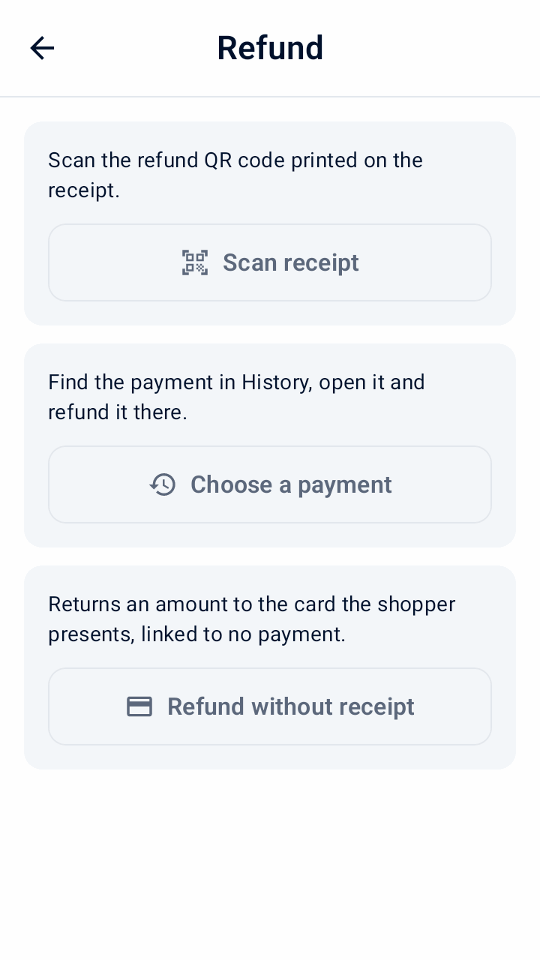
These refunds are linked to their original payment. Refund paid payment links in the Customer Area.
A split sale is refunded to its original payments. Mini mPOS proposes how much goes back to each card and how much cash to hand back; tap a payment to adjust it. Cards are refunded first, one at a time, then cash, which needs a Manager PIN. If a card refund is not accepted, nothing more is returned; open the sale to review what is left.
A sale with a reported surcharge returns purchase amounts first, then tip, then surcharge; a full refund includes the remaining surcharge.
Refund without receipt
Use Refund without receipt only when there is no payment to refund, such as a return without a receipt. It returns an amount to the card the shopper presents and is linked to no payment, so Mini mPOS cannot check what was paid. You are liable for wrong or repeated refunds.
Ask Adyen to enable unreferenced refunds for the store and set Adyen’s refund limit in the Customer Area. Then, in Settings › Payments, turn on Allow refunds without receipt, set your own Refund limit and set a Manager PIN. Adyen does not allow these refunds in some countries or for QR-code wallets; Mini mPOS checks the store Adyen verified for the terminal.
Tap Refund without receipt, enter the amount, choose a reason, confirm and approve with the Manager PIN; the shopper then presents the card. Refund approved means the acquirer approved it at once; Refund requested means Adyen received the request. History, receipts and the daily report list these refunds separately; reconcile them manually.
If Adyen Support set a refund delay, turn on Refund delay set up. While the delay lasts, open the refund and tap Cancel refund, then check the Customer Area to see if it was stopped.
Adyen: Unreferenced refunds · Adyen: Cancel an unreferenced refund
Important
Refund requested means Adyen received the request, not that the customer has the money. Check the final outcome in the Customer Area. If a refund's result is unknown, check it before retrying.
Print, email or share receipts
From a payment result or a History entry, tap Print receipt or Email receipt. Tablets and phones also offer Share receipt, which sends an image through Android's share menu. Printing needs a terminal with a printer.
Customize and test receipts
- In Settings › Receipts, enter your business details, header and footer. Or tap Import business details from Adyen to review details from Adyen. Choose Fill missing details to keep existing text, or Replace existing details to use the supplied business name, address and phone. Blank imported fields, tax ID, title and footer stay unchanged.
- Choose Print automatically, when to print a Merchant copy, and whether to Show refund QR code.
- Tap Print test receipt and check the printout. The on-screen preview does not show the printer's exact layout.
Other options:
- Show tax amounts
- Shows the tax included in, or added to, the total. It does not change the tax charged.
- Show tax breakdown
- Lists the tax for each rate. Needed to show included tax when prices include tax.
- Show taxable totals by rate
- Groups item totals by tax rate, including 0%.
- Show references
- On by default. Prints the merchant reference and any customer reference, so that a receipt can be matched to its payment.
- Marked tax rate (%)
- Marks items at that rate with an Item marker and its explanation. Leave it blank for no marker.
- Characters per line
- 32 by default, for narrow receipt rolls. Choose the width for your printer with a test print.
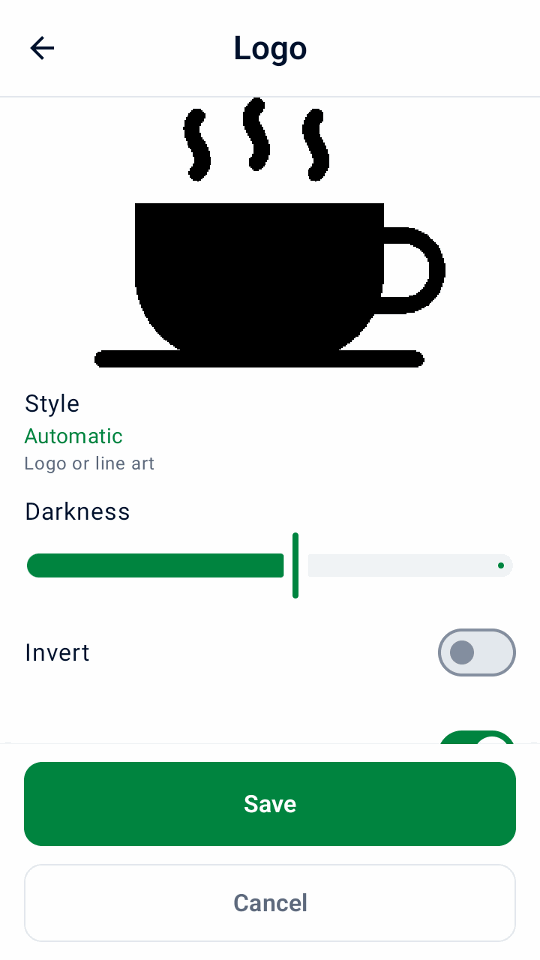
In Settings › Receipts › Logo, choose a PNG, JPEG or WebP image. If the device has no file picker, send one from the setup helper, alone or with other setup. Check the black-and-white preview: Style chooses Auto, Logo or Photo, and Darkness, Invert and Trim margins fine-tune it. Choose a Large or Small Size, then save. Turn off Print business name when the logo already includes it.
The logo appears on printed, emailed and shared receipts, including reprints. To adjust it, choose the source image again; use Remove logo to clear it.
Set the language
The app supports English, Simplified Chinese, Traditional Chinese, Japanese, Brazilian Portuguese, Spanish and French. Settings › Language changes app text and receipt labels on this device at once; saved merchant text and product names stay unchanged. Follow device uses Android's language for the app. Adyen's card receipt lines follow the terminal's receipt language.
Set up email receipts
- Open Settings › Email receipts. Choose your provider, or enter the SMTP server, port, sender and login. Use STARTTLS or SSL/TLS.
- Send a test email.
- On the same screen, choose when to ask for the customer's email and whether to send receipts automatically.
Follow your provider's instructions to allow SMTP and get the right password:
If receipts do not print or send, see printer and email problems.
Find payments and close the day
History lists payments and refunds by day, with daily totals.
Each page shows up to 100 entries across seven days; use Previous and Next to browse. Search covers all retained transactions.
- Filter by sales, Awaiting tip, pre-authorizations, refunds or Needs attention, and use Payment method for a card brand or wallet.
- Search by reference, authorization code, customer reference or email, the card's last four digits,
brand, wallet or exact amount. Every word must match:
visa 34finds Visa payments of 34.
On-screen totals follow your search and filters. Held payments, such as deposits and tips on the receipt, count as sales on the day their capture is accepted.
Close the day
- Open History, filter by Needs attention and resolve each entry; see unknown results.
- Check the Awaiting tip and pre-authorization filters. Enter tips, and capture or cancel deposits before their holds expire.
- Tap the print icon beside the day to print the Local daily summary.
- Reconcile with Adyen's reports in the Customer Area; see the Adyen settlement reconciliation guide .
The summary covers the whole day, ignoring filters: sales, tips included, accepted refunds, net, new holds and unresolved operations, for each currency. TEST and simulator activity is labeled. Paid payment links and captures without a known date are listed separately as undated activity.
Important
The Local daily summary covers only payments kept on this device. It is not Adyen's settlement and does not include other devices. The Customer Area is authoritative.
Warning
Switching between LIVE, TEST and the simulator permanently deletes all payment history and report data on this device. If unfinished payments exist, the app warns again: nothing is canceled at Adyen, but the local recovery and safe retry data is lost. Products and settings stay.
Compare with terminal totals and close a period
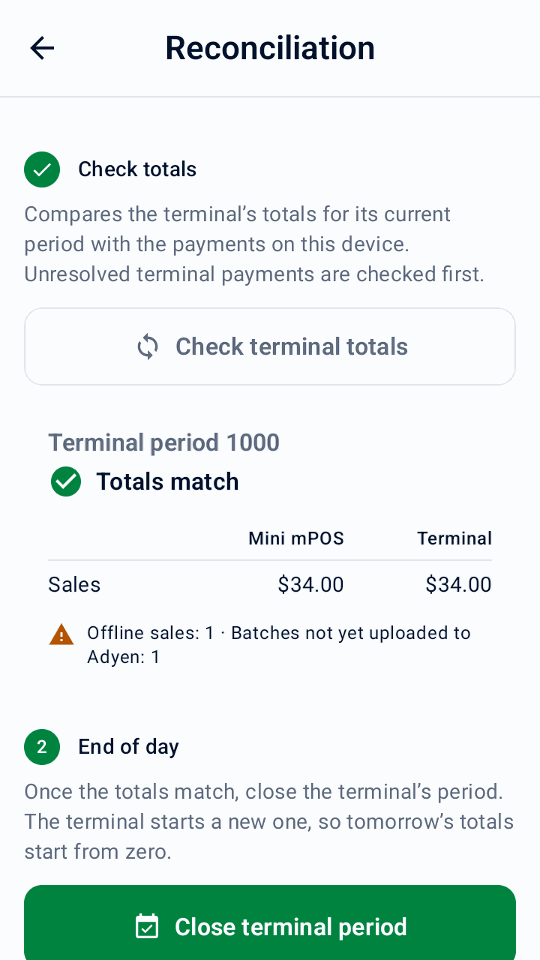
- On Home, tap Reconciliation, then Check terminal totals. Mini mPOS first checks pending or unknown terminal payments, then shows Mini mPOS and terminal sales and refunds side by side.
- If Totals differ, resolve the payments that need attention in History and check again. The terminal period is not necessarily a calendar day; other devices using the terminal or missing local history can cause differences. Payment links, token charges and sample history are not terminal payments.
- At the end of the day, tap Close terminal period, confirm, and complete Manager approval if requested. The terminal ends its period and starts a new one; this cannot be undone.
- Optionally, tap Print today’s report for the Local daily summary.
Not available with Tap to Pay. A matching comparison or closed period does not confirm settlement, refund completion or offline upload; the Customer Area remains authoritative.
Optional workflows
Check and configure Adyen capabilities
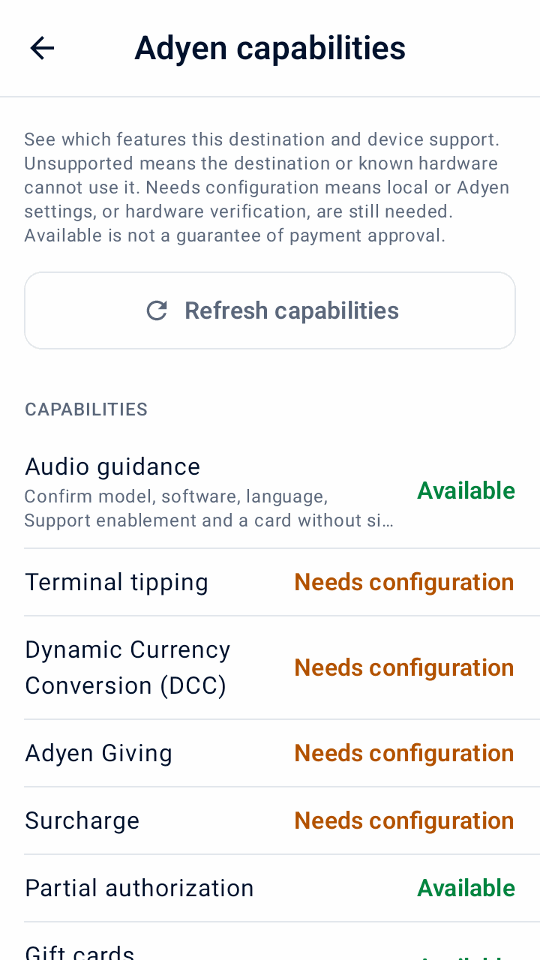
Open Settings › Adyen capabilities after connecting your payment destination. The screen shows features as Available, Needs configuration or Unsupported on this destination. These are setup indicators, not proof that your merchant account, card or payment method can complete a transaction. Until payments are set up, the screen offers Finish setting up payments instead.
- Tap Refresh capabilities to read the selected terminal's settings. Real terminal inspection uses the Management API roles in Quick start.
- For supported terminals, configure terminal tipping for the payment currency, DCC, MOTO or offline limits, then tap Save to Adyen. This changes the terminal's settings at Adyen.
- Enable the checkout options you need under Payments, Tips and donations or Shopper terminal display in Settings, then test them in TEST. The screen also lists Adyen Giving, partial authorization, surcharge, gift cards, terminal reconciliation and shopper display without editing them.
Tap to Pay does not offer physical-terminal features such as terminal tipping, shopper display, MOTO/MKE, offline payments or terminal reconciliation. For account enablement and payment-method requirements, follow the Adyen in-person payments documentation.
Use optional checkout workflows
Enable only the checkout options you need in Settings. Except for partial authorization, splitting and surcharges, these workflows need a supported physical terminal, not Tap to Pay. Check Adyen capabilities and test your actual setup first. Most options cannot be combined in one payment; checkout explains a conflict and asks you to turn one off.
Use audio-guided payments
First turn on Enable audio guidance in Settings › Payments › Accessibility, once Adyen Support has enabled it for your terminals, they run supported software and their language is not Estonian, Latvian, Icelandic or Lithuanian. It is available on AMS1, S1F2, S1F2L, S1E2L and S1U2 with software 1.117 or later, and M450, P630 and SFO1 with 1.124 or later. See Adyen’s accessible payment requirements.
At checkout, turn on Audio guidance for a shopper who needs it, and turn off tipping, Giving and keyed entry. Use a card that needs no signature. The payment requests the full amount and skips shopper-display prompts.
The terminal reads the instructions aloud; allow the shopper time. Mini mPOS waits up to ten minutes for the result. If no answer arrives, check the unknown result before another payment. The choice resets after each attempt.
Surcharges
Adyen adds surcharges you configure at Adyen; Mini mPOS does not set them. When Adyen reports one, History, receipts and the daily report show it separately from purchases and tips; the charged total already includes it. An unreported fee stays unknown. If a partial approval does not report the surcharge, check the Customer Area or refund the original card before starting again.
Disclose the surcharge before payment, especially with Tap to Pay, which has no surcharge confirmation screen. Do not combine surcharges with DCC. Mini mPOS blocks adjustments and captures above the original hold when a surcharge was reported. See Adyen’s surcharge requirements and Adyen’s surcharge configuration.
Mexican card installments
Confirm your issuer programs and fees with Adyen, enable installments in Settings › Payments and refresh Adyen capabilities to verify the Mexican store. At checkout, choose debit, one-off credit, or 3, 6, 9, 12 or 18 monthly payments, and pay the whole sale with one eligible card. Payment links, tokens, scanned wallets and gift cards do not carry the plan.
Details, History and receipts show the plan requested and the plan returned. An unsupported issuer may decline. Refund the original payment by amount or in full; the issuer manages the schedule.
Adyen: Mexican card installments
Collect a partially authorized payment
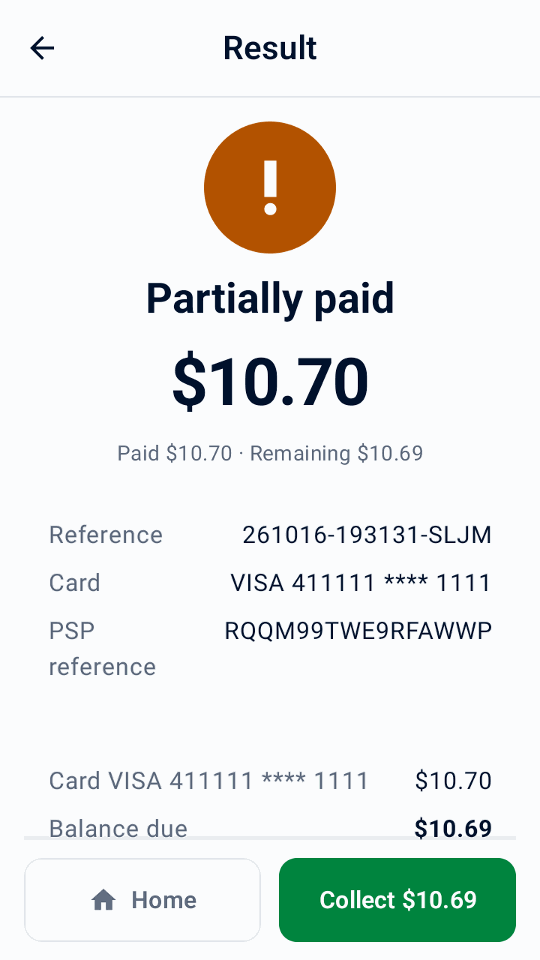
Turn on Allow partial authorizations to accept a card approval for less than the requested amount. When the result shows Partially paid, check the paid and remaining amounts, then tap Collect beside Home. Choose how to collect the balance on the same sale. Do not start a new sale for the full total: the approved portion is already paid.
A missing answer is not a partial approval. Resolve unknown results before collecting more.
Split a sale or take cash
At checkout, tap Other payment options. Choose Cash to collect the full balance, or Split payment to choose an Amount, equal Shares or sold Items, then Pay or Cash. Prices and tax stay as rung up, and any extra cent goes to the first shares. Cash entry starts at the amount due; typing replaces it. Exact cash restores it. Check the cash received and change, hand back the change, then confirm. Cash is recorded on this device only.
The sale stays Partially paid until paid in full. Tap Collect on its result or Collect balance in History to continue, even after a restart. The next equal share is selected automatically. Resolve an unknown card result before collecting more. The receipt lists every payment; the daily report shows cash separately, and terminal totals never include it.
With gift cards set up, tap Gift card to pay the chosen amount with one; a short balance is approved in part. Gift-card payments are refunded to the card, except local gift cards, which are refunded outside Mini mPOS.
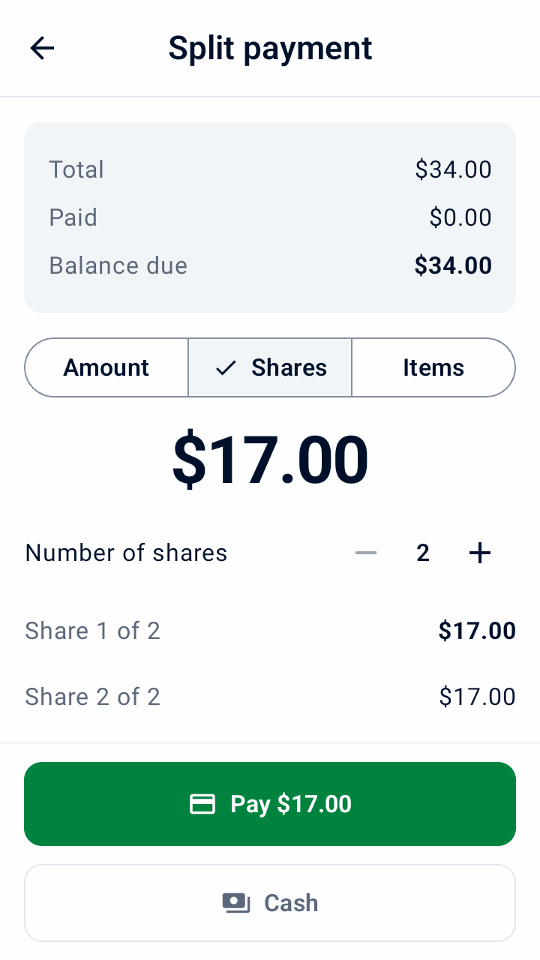
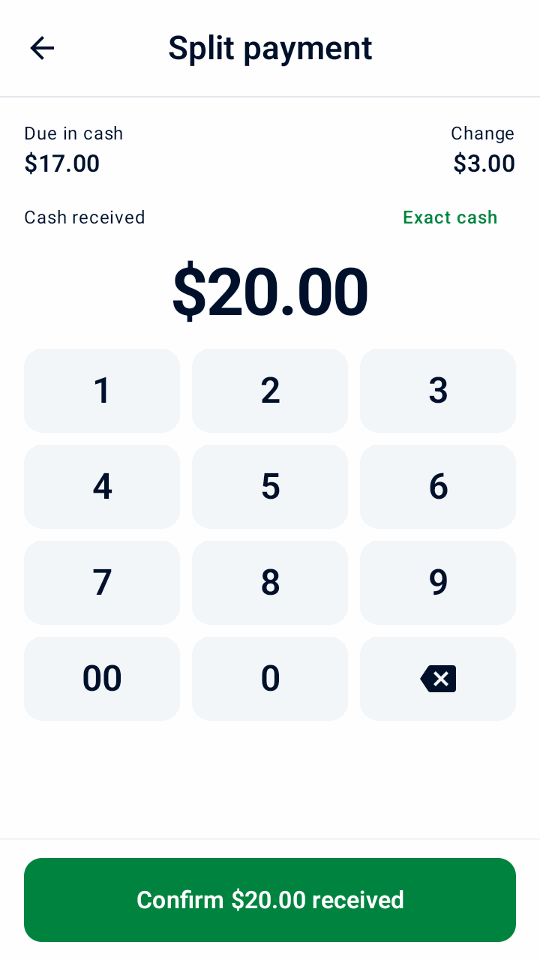
English simulator demos of a split sale.
Cashback
After Adyen confirms your store and card program, enable Cashback in Settings › Payments, set a cash limit and set a Manager PIN. At checkout, enter the extra cash requested and pay the whole sale with one eligible card. A purchase can be approved while its cashback is refused; hand over only the cash approved.
Cashout
Cashout on Home requests cash without a purchase. Enable it separately after Adyen confirms Australian eftpos cash-out for the store.
After approval, check the cash approved and the card charge. Hand over only the approved cash, then tap Record cash handed over and approve with the Manager PIN. Never hand over cash when its amount is unreported, and check an unknown result instead of requesting cash again. History keeps unrecorded handovers; daily reports show approved and handed-over cash separately from sales. Refunds never return cash given out.
Take meal vouchers
Turn on Meal vouchers in Settings › Payments only after you signed the issuer contracts, registered your store and Adyen enabled the vouchers. The verified store country of the terminal decides which vouchers apply: Brazilian PAT vouchers; Mastercard or Visa meal vouchers in Belgium, Finland, Germany, Luxembourg and Spain; or Titres-restaurant in France. Refresh Adyen capabilities after setup. Monizze, Pluxee Belgium and Lunch Check are not offered.
Where vouchers need eligible products, open each product in Settings › Products and turn on Meal-voucher eligible; custom items are never eligible. At checkout, tap Other payment options › Split payment, then Meal voucher. Mini mPOS offers the most the voucher can pay; collect the rest by card or cash. Mastercard or Visa vouchers may be approved in part. Titres-restaurant take at most EUR 25 a day, never on Sundays or public holidays, and cannot be refunded: offer store credit instead. A Brazilian voucher with a short balance is declined; enter a lower amount.
In Brazil, turn on Choose Brazilian vouchers in the app to request a voucher payment from Mini mPOS. Leave it off when Adyen Support enabled the terminal’s own credit, debit or voucher screen; then pay by card and the shopper chooses on the terminal. Voucher returns go back to the original voucher, never as cash.
Adyen: Brazilian meal vouchers · Adyen: Meal vouchers in Europe
Use the shopper-facing terminal screen
With a separate network/cloud terminal, open Settings › Shopper terminal display. Choose whether to show item details before payment, ask the shopper to confirm the order, or collect an email when checkout has none. Asking for an email needs email receipts to be set up; the receipt is then emailed automatically when Email the receipt automatically is on. After approval, you can show a QR code and ask for a 0–10 rating; a returned rating appears in transaction details.
These prompts use the app language. They are not offered when Mini mPOS runs on the payment terminal itself. The QR code holds the merchant reference, not a receipt; still deliver the receipt.
Invite a charity donation
After arranging Adyen Giving with Adyen, enable Charity donation (Adyen Giving) in Settings › Tips and donations. At sale checkout, select it to invite a donation on the terminal after payment. It is not offered for pre-authorizations or receipt-tip holds.
The purchase and donation are separate. A reported donation amount appears in transaction details; an approved purchase alone does not confirm a donation.
Take a MOTO or Manual Key Entry payment
- Check with Adyen that your terminal and account allow the required entry mode. Configure MOTO in Adyen capabilities when needed, and set staff PINs under Staff PINs.
- In Settings › Payments, enable the MOTO or Manual Key Entry option. At checkout, select Mail / telephone order (MOTO) for a remote order, or Manual Key Entry (MKE) when chip or contactless reading fails. Only one can be selected.
- Tap Pay, review the fraud and chargeback liability warning, and complete Manager approval when prompted.
Keyed transactions carry higher fraud and chargeback liability for the merchant.
Recognize offline payments and pending batches
Offline EMV and Store-and-Forward need a supported terminal reached locally: Mini mPOS on that terminal or a terminal on your network. They are not offered through cloud routing or Tap to Pay. Arrange offline processing with Adyen and review its risks before setting limits in Adyen capabilities; Mini mPOS does not queue payments itself or make a terminal reachable when your local network is down.
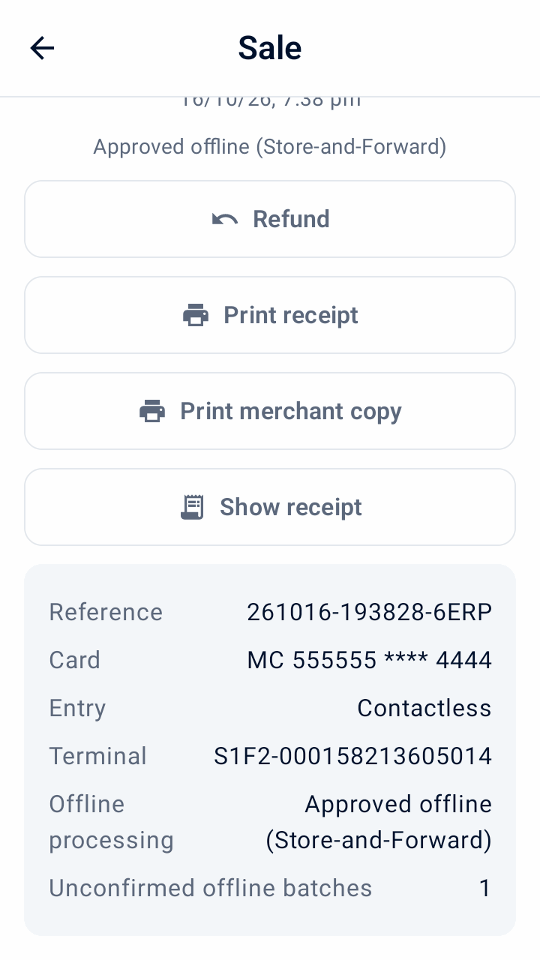
History marks reported offline sales. Open a sale to see Offline processing, whether it used offline EMV or Store-and-Forward, and any Unconfirmed offline batches reported by the terminal. An offline approval can have no PSP reference yet. It is not an unknown result, but it does not confirm that Adyen has received or settled the payment.
Restore the terminal's connection to Adyen and verify uploaded payments and final outcomes in the Customer Area. Check the offline and unconfirmed-batch warnings during terminal reconciliation; matching totals do not confirm offline settlement. If no conclusive payment answer arrived, follow unknown-result recovery instead of assuming offline approval or charging again.
Scan a shopper wallet code
Use Scan wallet at sale checkout to read a payment code from the shopper’s wallet app. This is different from scanning a product barcode or a refund receipt. It works with a physical payment terminal, not Tap to Pay; wallet discovery needs a read role.
- Check the total and checkout fields, then tap Scan wallet. If receipt tipping is selected, confirm paying without it: the wallet charges the total immediately, not a pre-authorization.
- Choose the shopper’s wallet. A single available wallet is selected automatically. Only individually configured wallets appear; Alipay+ does not imply separate GCash, DANA, Kakao Pay or TrueMoney choices.
- On a confirmed scanner-equipped terminal, press its scan button. This may be the network/cloud terminal, not the device running Mini mPOS. To scan with the device’s camera instead, tap Use camera.
- Scan the shopper’s payment QR code or payment barcode. One valid scan starts payment immediately. Wait for the normal payment result and deliver its receipt.
Canceling keeps the cart. A terminal scan ends after 30 seconds; use Scan again or the camera. Wallets may not support Save card; an approved payment without a saved token is still approved. Handle wallet problems, and never replace an unknown payment by scanning again.
Confirm your wallet setup and test behavior with the Adyen wallet guide and Adyen PayPal and Venmo guide.
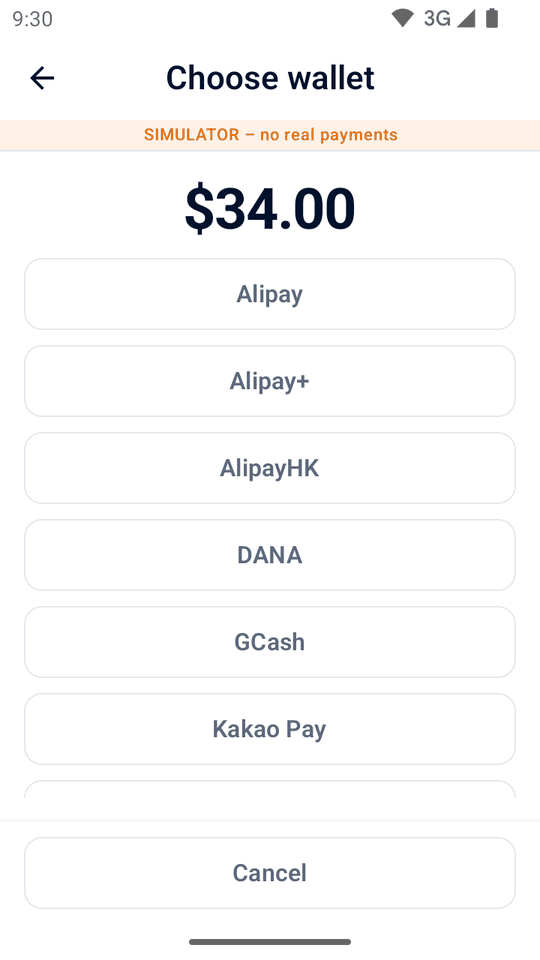
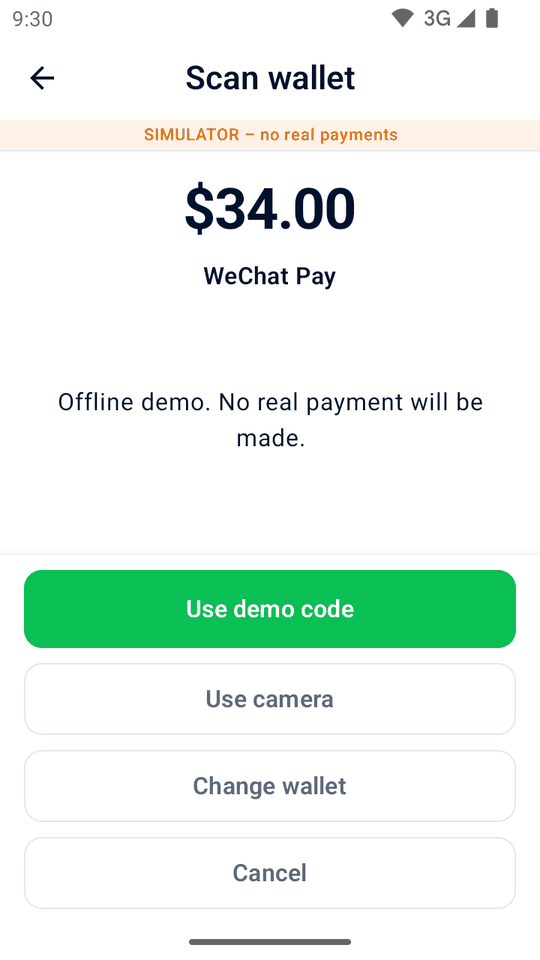
English simulator demos of wallet scanning.
Use references and save cards
- Merchant reference
- To record a booking or order number, turn on Settings › Payments › Ask for a merchant reference. The number identifies the payment in Adyen. If left blank, a unique reference is generated.
- Shopper reference
- In Settings › Payments, choose the Shopper reference: a customer reference typed at checkout (the default), the customer's email, or none. It is sent to Adyen with every payment. Email references are hashed by default; use the same salt on every device.
- Saved cards
- With a shopper reference set, turn on Offer to save cards and choose the Recurring processing model for your Adyen setup. Get the customer's consent before selecting Save card for future payments. To charge one later, see Manage tokens.
Manage tokens
- On Home, tap Tokens and enter the Manager PIN if asked.
- Enter the customer reference, or the email when that is the shopper reference, and tap Find tokens.
- Tap Charge beside a token, then add products or a Custom item. This cart is separate from New sale.
- Review the charge and tap Charge.
The customer is not present, so get their consent first. Tokens saved for a different Recurring processing model cannot be charged here. Refund these payments from History. If a charge's result is unknown, check it from History within seven days, after that in the Customer Area. At a New sale’s checkout, Charge token appears once the shopper reference has saved tokens.
To delete a token, tap its Delete action, check the details, then confirm and approve with the Manager PIN. Deletion removes the token at Adyen for Mini mPOS and every other integration; it cannot be undone. Past payments and their refunds stay available. If deletion stays unconfirmed, tap Check deletion before charging or deleting again.
Sell and manage gift cards
Gift cards work with an Adyen terminal; Tap to Pay can’t take them. In Settings › Payments › Gift cards, turn on each provider you completed onboarding with at Adyen, add the card type Adyen gave you for Intersolve or local gift cards, and choose how staff present cards: scan with the camera and enter the expiry date, or swipe or key in on the terminal. Only the actions Adyen documents for a provider are offered: deactivation is Givex only, and local gift cards take payments only.
- On Home, tap Gift cards, then choose the provider and how the card is presented.
- Choose Check balance, Activate, Load, Cash out, Refund to card or Deactivate.
- For a new value, choose Card payment, or Received outside app and confirm you received the money.
- Confirm, then approve with the Manager PIN.
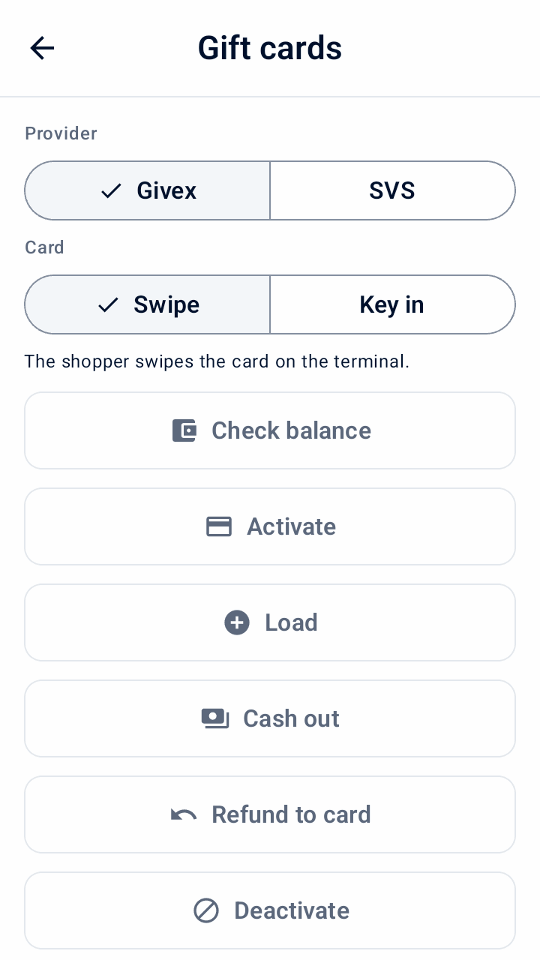
Approval for balance checks and value changes follows staff permissions. A card payment is taken first and the value is sent only once it is approved; if the payment’s result is unknown, check it before anything else happens. If the payment was taken but no value was added, the activity shows Value not added: send the value again, refund the card payment, or record the money given back. Nothing is repeated automatically.
Undo load appears for the card’s latest load within 24 hours. A cash out normally pays the whole balance and ends the card; only some Givex cards allow less. Hand the cash over once it is approved, then tap Cash handed over; an unconfirmed handover stays under Needs attention, also after a restart. Gift card activity appears in History and separately in the daily report; it is never counted as a sale.
Take payment with a link
Prerequisites
- Your merchant account meets the Adyen Pay by Link requirements, including terms and conditions, before live use
- At a sale's checkout, tap Create payment link.
- Show the QR code, or tap Email link, Print link or, on a tablet or phone, Share link.
- Keep the link screen open to see the payment arrive, or later tap Check payment in its History entry.
- If the link is no longer needed, tap Cancel link.
The entry shows Awaiting payment until the link is paid, expires or is canceled. Set how long links work in Settings › Payments › Payment links. Links are for sales only, not deposits or tips on the receipt.
Important
Anyone with a real link can pay until it expires. Refund paid links in Customer Area › Payments › Payment list; the app cannot refund them.
If a link is missing or not updating, see payment link problems.
Hold and collect a deposit
Prerequisites
- Pre-authorization enabled by Adyen Support for your payment methods; see the Adyen pre-authorization guide
A pre-authorization holds an amount on the card without charging it. Your whole account does not need manual capture; Mini mPOS requests it for these payments only.
- On Home, tap New pre-authorization. Choose a pre-authorization product, scan its barcode or enter an amount. Each pre-authorization has one item.
- At checkout, tap Pre-authorize. The receipt shows the amount held.
- When you are ready, open the entry in History and choose an action:
- Capture
- Collects the amount owed. A lower amount releases the rest; a higher amount first asks the card issuer to increase the hold. Refunds are possible once capture is requested.
- Adjust amount
- Changes the amount held without charging it. Submitting the same amount renews the authorization.
- Cancel pre-authorization
- Releases the hold. If the payment was already captured in the Customer Area, Adyen refunds it in full instead.
Capture requested is not final confirmation; check the Customer Area. For immediate answers to adjustments, enable Return adjust authorisation data as described in the Adyen authorization adjustment guide .
Warning
Holds expire. Check the pre-authorization filter daily and capture or cancel promptly. For failed or unknown operations, see capture problems.
Collect a tip on the terminal
- Check terminal tipping in Adyen capabilities. Set the terminal's predefined and custom tip options for the payment currency when needed.
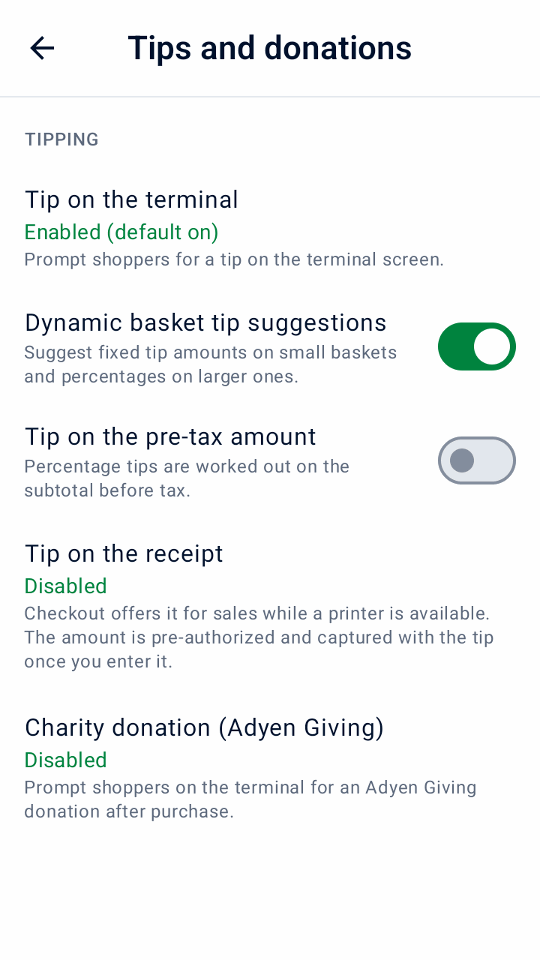
- In Settings › Tips and donations, enable Tip on the terminal and choose its checkout default. Optionally enable Dynamic basket tip suggestions for fixed amounts on small baskets and percentages on larger ones, or Tip on the pre-tax amount.
- At sale checkout, select Tip on the terminal and tap Pay. The shopper chooses a tip before the card is charged. Check the returned total and tip and deliver the receipt.
This does not need a printer or later tip entry. Terminal tipping and tips on the receipt cannot be selected together. Neither is offered for pre-authorizations, scanned-wallet payments or payment links; terminal tipping is not offered with Tap to Pay.
Collect a tip written on the receipt
Prerequisites
- A terminal with a printer
- Pre-authorization and overcapture enabled by Adyen Support; see the Adyen receipt tipping guide
In Settings › Tips and donations, choose Enabled (default off) or Enabled (default on) to set how the checkout switch starts. Disabled, the default, hides it. Some debit cards and wallets do not support this flow.
- At a sale's checkout, switch on Tip on the receipt and tap Pay. The bill is held, not charged.
- Print the receipt. It has blank Tip and Total lines, and the merchant copy has a signature line.
- When the customer has filled it in, tap Enter tip on the result or in History's Awaiting tip filter.
- Enter the tip or the total, or tap No tip, and confirm.
The app captures the bill plus the tip. Tips over 20% first need the card issuer to increase the hold; if it refuses, enter a smaller tip or none. A saved tip cannot be changed. Before a tip is entered, cancel the payment instead of refunding it; afterward, refunds include the tip.
Warning
Enter every tip promptly, including zero tips, so the bills are captured before their holds expire. For failed or unknown captures, see capture problems.
Set up more devices and manage data
- On the configured device, open Settings › Data and transfer › Share with another device . Choose the catalog, settings and/or passwords and keys, then tap Show QR codes.
- On the new device, choose Set up from another device and scan all the codes, in any order. Choose whether to merge or replace its catalog.
- Enter the 12-character transfer code shown on the first device, even when copying only products or settings. Keep it separate from the QR codes. Tap Import.
- Check prices and tax, test the connection in Settings › Terminal, and print a test receipt.
The new device keeps its own payment destination, terminal, environment and Tap to Pay registration. A shared key works for another terminal only if Adyen assigns it the same key.
Important
This is a one-time copy, not synchronization or a backup of payment history. Each device keeps its own payments. Clearing the app's data in Android deletes all products, settings and history on the device.
In Settings › Data and transfer, set Keep transactions for or tap Clear settled history; unresolved payments are always kept.
On a tablet or phone, Mini mPOS checks for a newer version at startup. If Home offers Update, tap it to open the APK in your browser, then install the download. Adyen terminals update through the Customer Area, not this prompt. You can also get the latest release and follow the installation steps. Keep the same signing source and install over the existing app; do not uninstall or clear its data.
For import problems, see PIN and transfer problems.